TABLE OF CONTENTS
- Introduction
- Navigating the Advanced Search
- Managing Search Fields and Templates
- Q&A, Limitations and Considerations
- Related articles
Introduction
The advanced search form is a graphical interface that enables users to select and combine multiple search criteria. It offers flexible options to configure and personalize searches, making it easy to create complex queries with any set of criteria for precise results. You can search and combine fields such as keywords, classifications, dates, assignees, legal status, and more.
Navigating the Advanced Search
To access the Advanced Search form, check from the module bar you are already in the Search module (magnifier) and click on Advanced Search in the left panel.
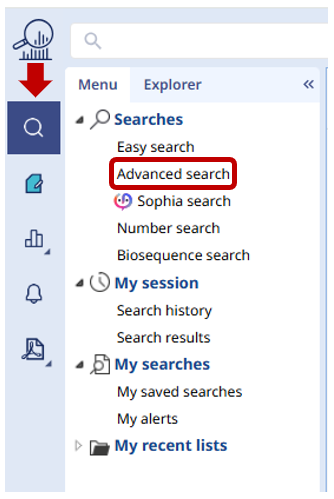
The form provides a range of search fields along with multiple templates. Templates are pre-defined configurations of the Advanced Search form, each tailored for specific use cases (e.g., Legal & Prosecution, Freedom-To-Operate, see below).
Refining Search Fields
Search Fields can be used individually or combined with others to build complex Boolean queries. The default operator between different search fields is AND.
Where available (such as Keywords search), you can add additional lines by using ADD at the top right of the Search field. This allows you to enter multiple values for the same criterion.

Some Search Fields may be combined using OR instead of the default AND. When available, the operator will appear in blue and can be changed by clicking on it.
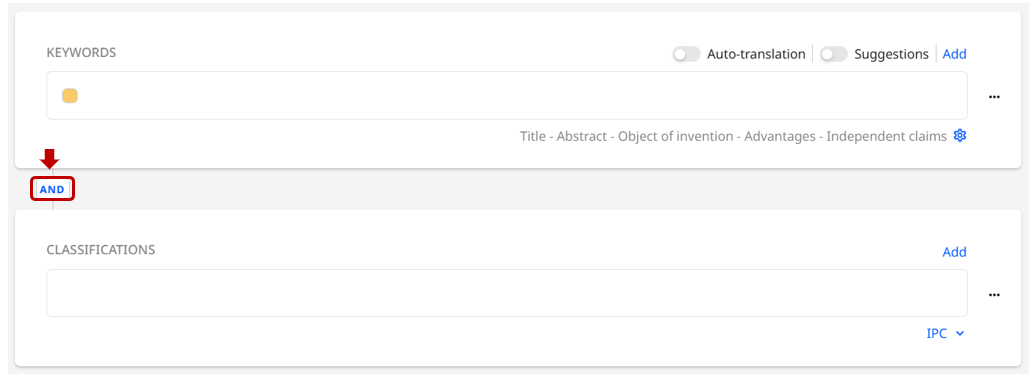
Another possibility is to refine where you are searching. In the lower-right corner of some fields, you’ll find options or a Gear icon. For example:
- For Keywords, click the gear icon to choose where to search within a patent document. Your selection will appear next to the gear icon for quick reference.
We recommend starting a new search by selecting Title & Abstract. For a more comprehensive search (which may include additional noise), you can add the Description section.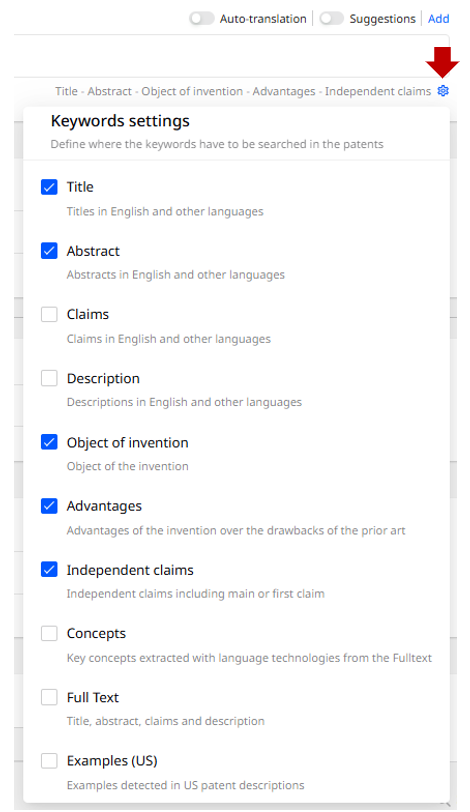
- For patent classifications, you can choose which system to use. (e.g., IPC, CPC, File Index etc...) or choose the Technology Domain (IPC codes groupings - refer to the WIPO website for details).
It’s also possible to combine IPC and CPC searches with an OR logic. Ensure your input format matches the codes in both systems.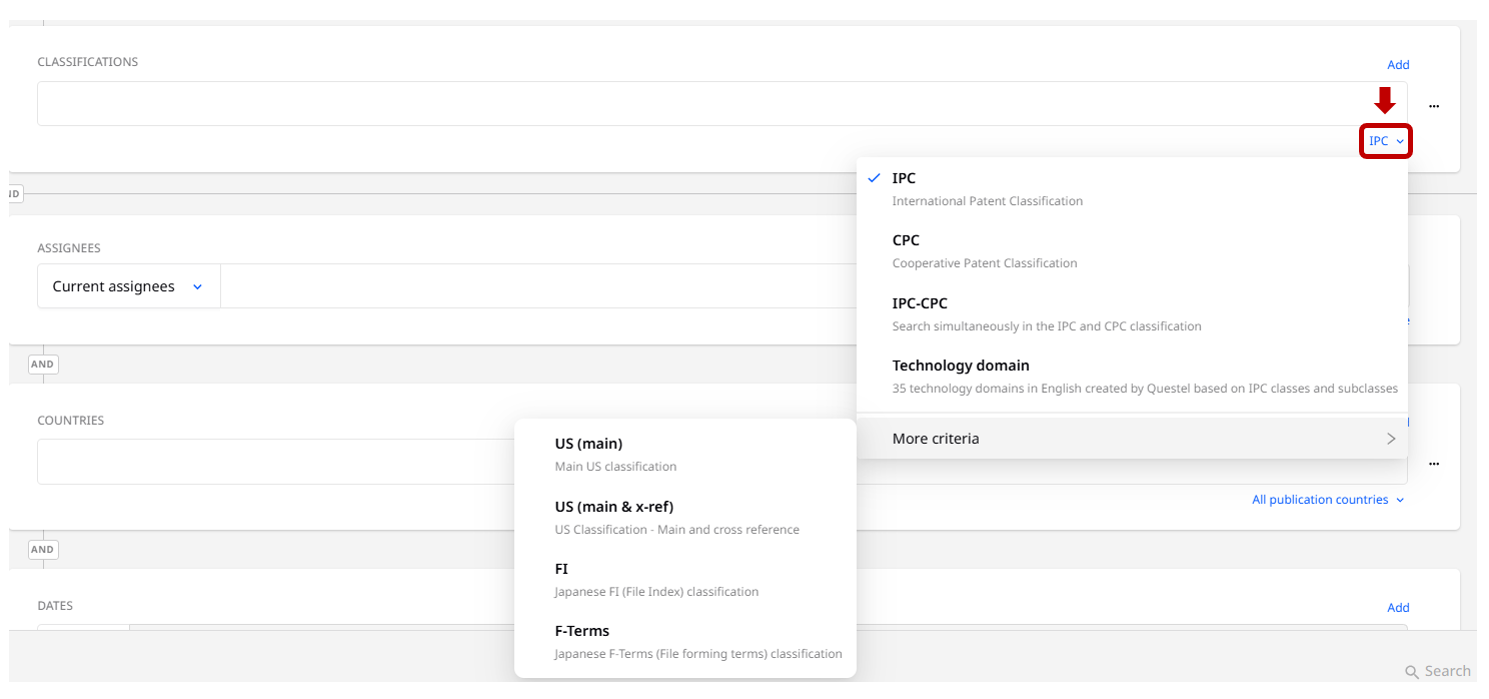
Keywords Auto-Translation and Synonym Suggestions
Orbit includes a suggestions system, that could assist our users to translate into English their keywords, and find out more relevant concepts to help broaden or refine your query.
When the Suggestions feature is activated, a “+” icon appears in front of suggested words.
 Click the “+” icon to view the translation and a list of synonyms related to your keyword. Then select the terms you want to include in your query by clicking on them.
By default, new terms or concepts are combined using the OR operator; however, this can be modified if required.
Tip: For a cleaner display, consider deactivating the Suggestions feature once you’ve finished selecting terms.
- Another way to access translations is by activating the Auto-Translation feature. When enabled, the system automatically adds an English translation aside of your original words.
When you click Search, both the original keywords and their translated English versions are added to your query. The translated query will appear in your Search History as any other search.
Assignees and the Corporate Tree
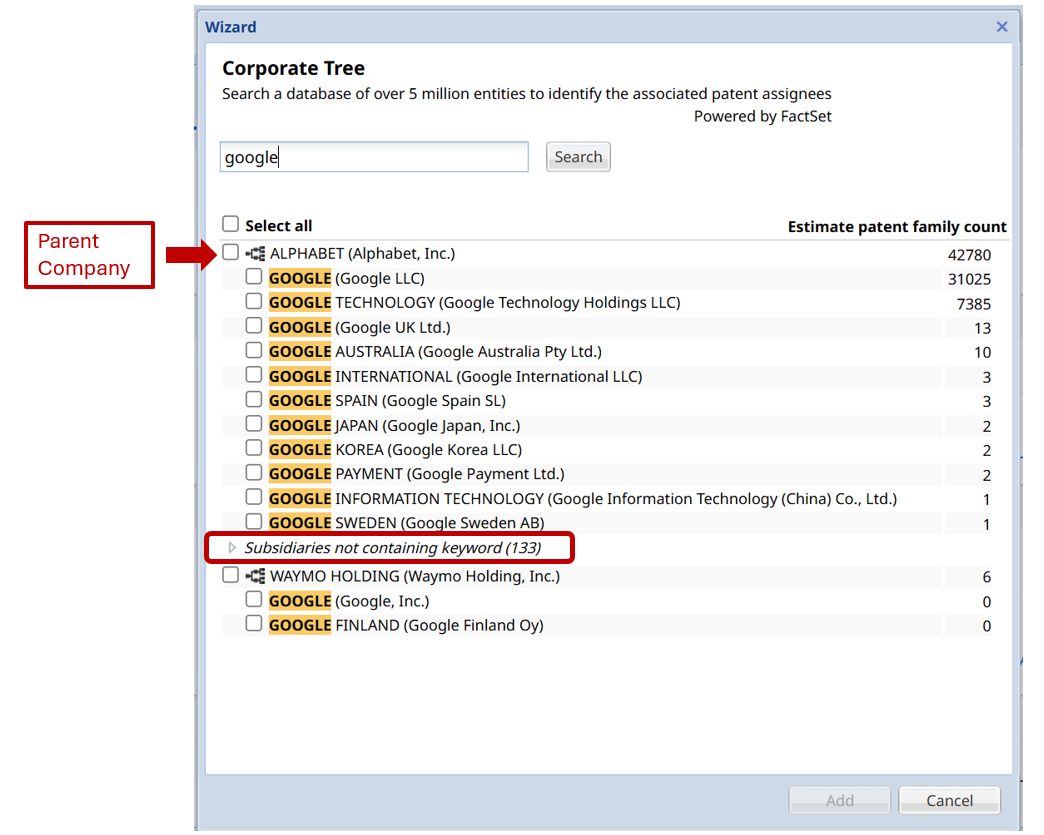
In the Assignees field, you can leverage the Corporate Tree feature to include subsidiaries, affiliates, and related entities of a company in your search. This ensures that your query covers the entire corporate structure, not just the parent organization or a single affiliate.
Note: a patent is an asset (in many different ways), that could be used among all the entities of a group. Often, the current assignee (who owns and pays) is not the actual "user" of this asset. 
- Click on the Corporate Tree icon to open a new window where you can search for the desired entity.
- You can select the parent company to automatically include all its subsidiaries in your query.
- Alternatively, you can display and select individual subsidiaries, even those that do not contain your original keyword, for more precise control.
Managing Search Fields and Templates
Different templates are available from the dropdown list on the left of the Advanced Search form. Each template defines a specific “state” of the form — i.e., which fields are toggled ON or OFF. Users can easily switch between templates or customize their fields selection (custom template) according to their needs.
Refer to the top-left section of the Advanced Search form to view or select the template currently in use.
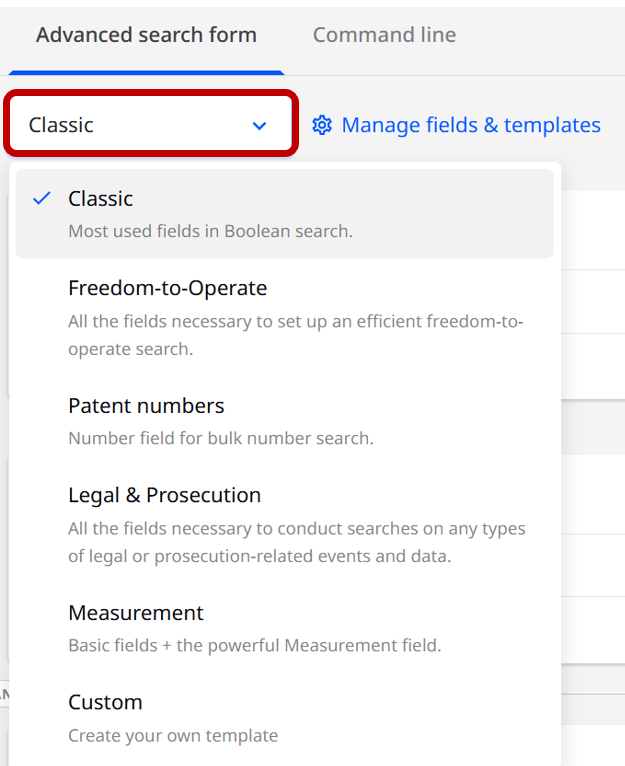
When a user clicks on a template the corresponding fields are automatically enabled or disabled. Here's a quick overview:
| Template | Included Fields |
|---|---|
| Classic | Keywords, Classifications, Assignees, Countries, Dates |
| Freedom-to-Operate | Keywords, Classifications, Assignees, Legal Status |
| Patent numbers | Numbers |
| Legal & Prosecution | Legal Status, Litigations & Oppositions, Unified Patent Court, Representative, Filing Details |
| Measurement | Keywords, Classifications, Measurement |
Please note: When logging in, the Advanced Search Form displays the last used template. If a Custom template was used, it restores the last saved state.
Search Fields Customization
To customize and organize your search fields and templates click the Manage fields & templates button. A new a popup window will open. This window is divided into two main areas:
- Left Panel: Displays all available templates and the Custom option.
- Right Panel: Shows the selected fields for the chosen template, organized by category (e.g., Common Fields, Special Fields, etc.)
Only the Custom template can be edited; all other templates are locked.
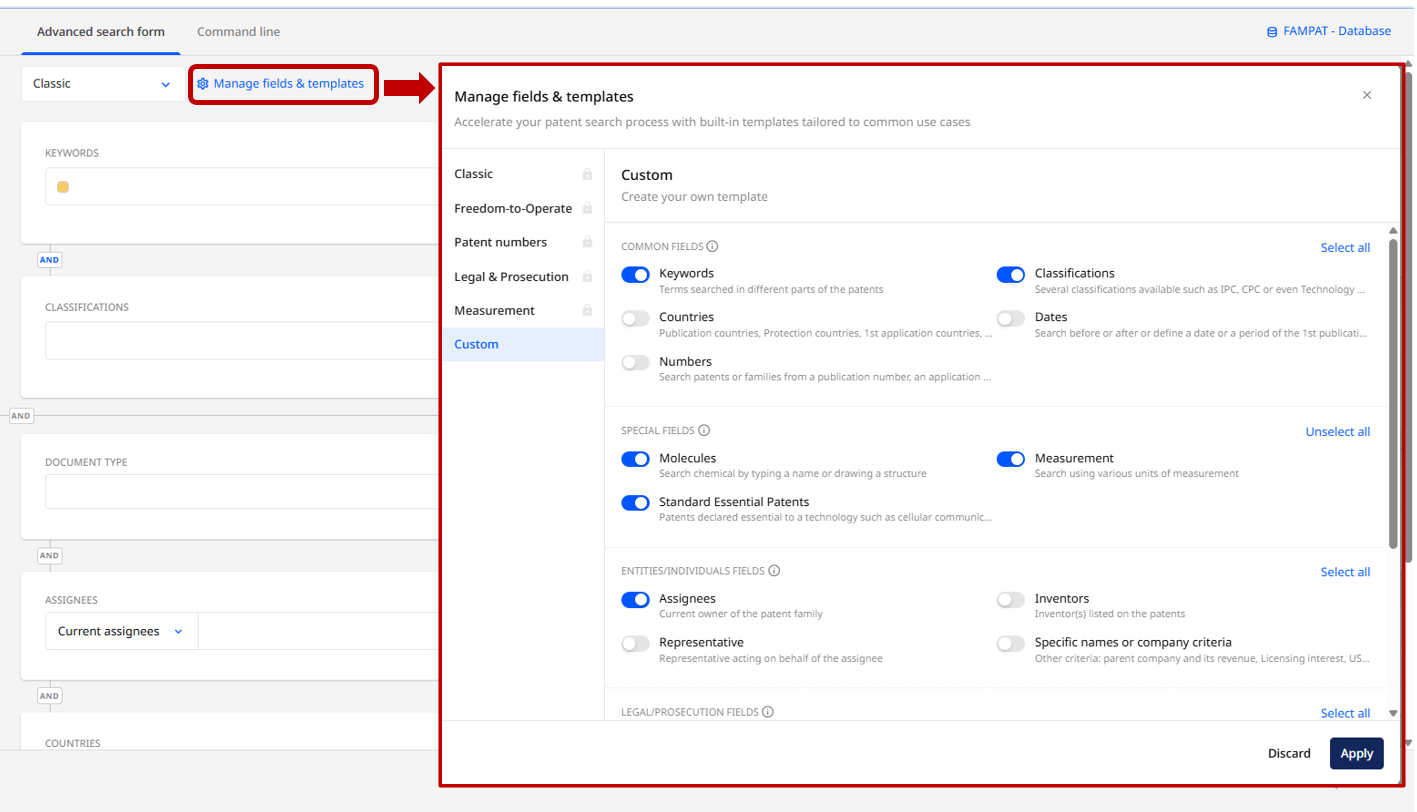
You can create your own template using the Custom option to save and restore your preferred settings.
Templates' behaviors Details
- Working Across Collections
- When switching collections (e.g., from FAMPAT to FULLTEXT or FULLPAT), all fields remain visible; however, unavailable fields are disabled and marked as not available.
- If all fields from the active template are present in the new collection, the template remains active.
- If any field from the active template is missing, the system automatically switches to the Custom template using your saved preferences (excluding unavailable fields).
- If, after excluding fields that are not available in the new collection, no fields remain selected, an alert message is displayed.
- Editing Search History Queries
If a query in the search history was executed through the Advanced Search form, the following behaviors apply when editing the query:- Search executed using a Custom Template:
Editing restores the latest version of the Custom Template populated with the fields of the original search.
The resulting Custom Template overwrites the one saved in user preferences. - Search executed using a predefined template (not Custom):
Editing restores the fields defined by that specific template. This ensures full reproducibility of past searches, regardless of subsequent modifications - Search executed without a template:
This behavior relates to a search created before templates were introduced to the Advanced Search form.
Editing restores the latest version of the Custom Template populated with the fields of the original search.
The resulting Custom Template overwrites the one saved in user preferences.
- Search executed using a Custom Template:
Q&A, Limitations and Considerations
What Templates Do Not Store: Templates do not store the number of input areas (additional lines) per Search field or any pre-filled inputs.
Template Editability: Predefined templates configurations are fixed and cannot be edited by users. The Custom configuration is the only editable state.
Q: Is it planned to add user-defined templates?
A: Yes
Q: Can new templates be added or existing templates be modified soon?
A: Yes. These features are planned based on user feedback and the evolution of available fields in the Advanced Search form.
Was this article helpful?
That’s Great!
Thank you for your feedback
Sorry! We couldn't be helpful
Thank you for your feedback
Feedback sent
We appreciate your effort and will try to fix the article