Introduction
The content displayed in the list of results can be customized at will. The default layout is "compact", and you will find here, how to find out the best layout for you.
Your choice is always saved, to display the same configuration at your next session.
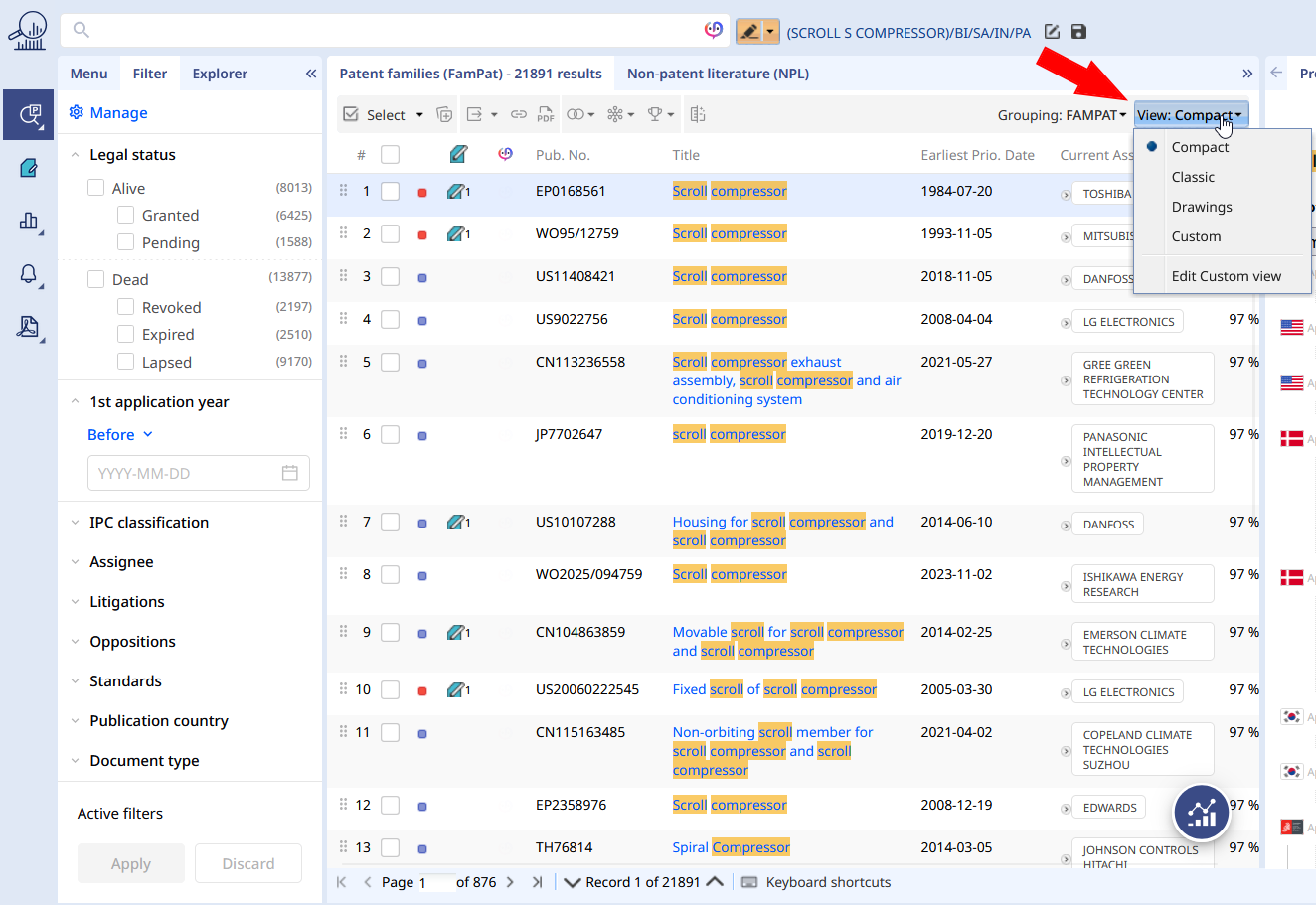
The Compact layout offers a versatile display with most important items. From the left to right : result number, selection box, legal state, possible presence in a Workfile, existing chat with Sophia Document, Representative publication number, Title, Earliest priority date, Current assignee(s) and Relevance score (depends on search done).
You can also rely on the Classic layout. This one displays the Abstract (from representative member) and First drawing. The Classic layout is often use to start an in-depth review, hence used into the Workfile module - without the right-hand pane.
The third layout is Drawings, focusing on the pictures/schemes existing for each family. As some families may have more than 20 drawings, we advise you to fold the right-hand pane (Preview tab e.g.) to make some space and better display the pictures.
Moreover the Custom layout, where you can define the content displayed for each family. Once selected, the Custom layout will look-like Classical. Now, you can click on Edit Custom view button from the drop-down menu, and the following wizard will appear:
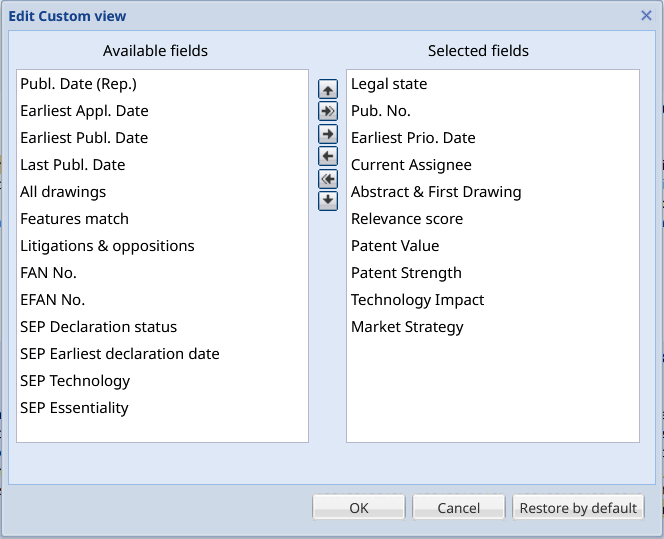
- Use the arrows or the drag and drop an item to the right to select them
- Double arrows allow to select or unselect all.
- The up and down arrows or drag and drop, will allow you to manage the order of your selected fields.
Once the modification is done, make sure to hit the "OK" button to validate your changes.
Was this article helpful?
That’s Great!
Thank you for your feedback
Sorry! We couldn't be helpful
Thank you for your feedback
Feedback sent
We appreciate your effort and will try to fix the article